Visão geral do Notetaker
Note
Notetaker is being gradually rolled out to eligible users. Junte-se à lista de espera.
Notetaker fornece resumos gerados por IA, transcrições e itens de ação para suas reuniões gravadas. Compartilháveis por e-mail, link ou arquivo TXT para download, os resumos do Notetaker ajudam você a se organizar e a fazer acompanhamentos rapidamente.
Por exemplo, você pode:
- Compartilhar vídeos de resumo, trechos ou notas da reunião — com proteção por senha opcional
- Use o Search Q&A para obter respostas rápidas a partir da transcrição da sua reunião
- Ativar modelos de resumo adaptados ao seu setor
- Exportar transcrições como arquivos TXT para otimizar a documentação
Antes de começar
- Notetaker funciona com Zoom, Google Meet e Microsoft Teams mesmo que você não seja o organizador ou a reunião não tenha sido agendada pelo Calendly.
- Resumos não são criados para reuniões com menos de 4 minutos ou sem áudio.
O que esperar quando o Notetaker entra nas suas reuniões
- Se você for o organizador: Notetaker entra no seu Zoom ou Google Meet no horário agendado, solicita consentimento para gravação e começa a gravar assim que for admitido ou confirmado. Ele aparece como participante da reunião na chamada.
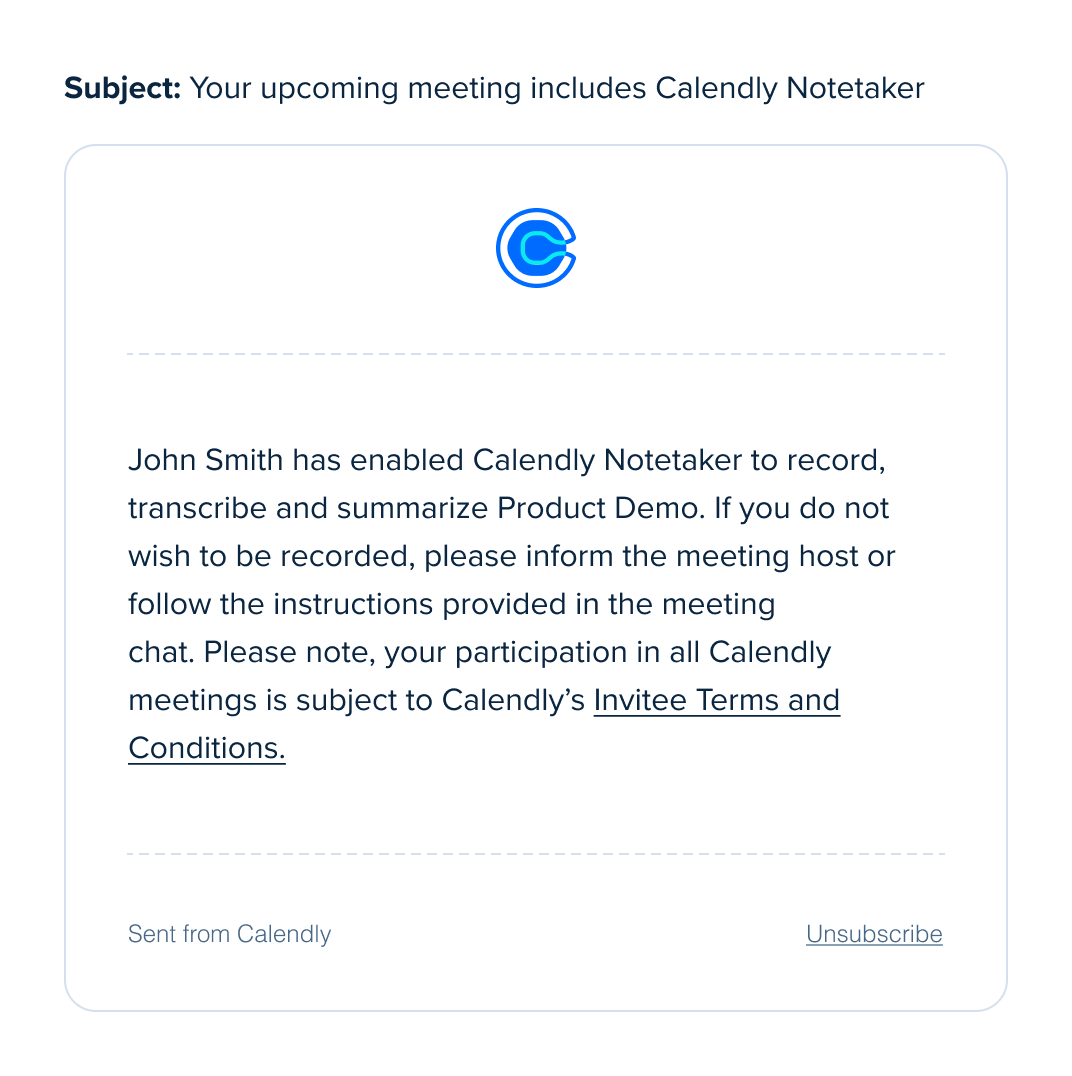
- Se você não for o organizador: Notetaker ainda entra em seu nome, mas o organizador deve aprovar a gravação e optar por admiti-la ou recusá-la. Você será notificado se a reunião estiver sendo gravada. Notetaker aparecerá como participante da reunião.
Saiba mais sobre o que acontece quando o Notetaker entra nas suas reuniões.
Configurar o Notetaker
Passo 1 – Ativar o Notetaker
- Vá para Configurações da conta > Configurações do Notetaker
- Selecione Obter o Calendly Notetaker gratuitamente
- Selecione Avançar
Passo 2 – Em quais reuniões o Notetaker deve entrar?
Por padrão, o Notetaker grava todas as reuniões do Zoom, Google Meet e Microsoft Teams do seu calendário conectado.
Você pode gerenciar essas configurações a qualquer momento:
- Ative/desative Todas as reuniões agendadas com o Calendly
- Use o menu suspenso para selecionar tipos de evento específicos
- Ative/desative Todas as reuniões agendadas em calendários conectados
- Você sempre pode remover o Notetaker de uma reunião
- Ative/desative Apenas reuniões com convidados externos
- Observação: Convidados externos têm um domínio de e-mail diferente do seu
Quando terminar, selecione Concluir configuração.
Pronto para saber mais sobre o Notetaker?
- Como compartilhar resumos do Notetaker
- Como excluir um resumo do Notetaker
- O que esperar quando o Notetaker entra nas suas reuniões
- Como visualizar reuniões do calendário no Calendly
Adicionar o Notetaker às suas reuniões
Notetaker grava reuniões do Zoom, Google Meet e Microsoft Teams no seu calendário conectado. Isso inclui reuniões agendadas pelo Calendly e eventos no calendário onde novos eventos do Calendly são adicionados.
Na sua Reuniões página, reuniões futuras e em andamento exibirão um Notetaker interruptor no lado direito.

Você pode gerenciar suas regras padrão de gravação a qualquer momento na página Configurações do Notetaker nas Configurações da conta.
Para adicionar o Notetaker a uma reunião:
- Vá para a sua Reuniões página.
- Localize uma reunião do Zoom, Google Meet ou Microsoft Teams Agendada ou Em andamento que você deseja adicionar o Notetaker.
- No lado direito, use o interruptor para deixar o Notetaker ligado.
Note
Você também pode adicionar o Notetaker a partir da extensão do Chrome ou do aplicativo móvel do Calendly.
Para adicionar o Notetaker:
- Na extensão do Chrome: Abra a extensão e vá para a seção Reuniões, então selecione os três pontos ao lado da sua reunião e Adicionar Notetaker.

- No aplicativo móvel: Abra o app e vá para a sua Reuniões página, então selecione sua reunião. No canto superior direito, alterne o Notetaker ligado.
Perguntas frequentes
Calendly stores user and invitee data in secure U.S. data centers run by Google and Amazon Web Services (AWS). Learn more.
Recaps will stay available for as long as your account exists. They won’t be affected by your subscription status or account activity.
Não. Não usamos os dados dos clientes para treinar ou ajustar finamente nossos modelos. Em vez disso, usamos prompt engineering em transcrições de reuniões. Essas transcrições não são memorizadas e nos ajudam a melhorar a qualidade dos resumos.
Calendly isn't designed to collect Protected Health Information (PHI). You may not need a HIPAA-compliant tool, please check with your legal team to confirm.
Yes. Meeting owners can delete individual recaps. Admins can delete all Notetaker data for the organization. Learn more.
You can share recaps by:
- Sending an email directly from Calendly
- Copying a link to the recap video
- Exporting the transcript as a TXT file
Download a recap video:
- Go to the Recaps page.
- Select the recap you want to view.
- At the bottom left of the video, select the
Download icon.
At this time, you can create unlimited recaps each month.
Currently, Notetaker is only available in English.
Only the Meeting Host or an assigned Alternative Host can approve. The bot joins and waits up to 30 minutes for approval. It does not record while waiting.
If no one approves in 30 minutes, the bot leaves. No recap is created, and the Meetings page shows “The host did not allow Notetaker to record this meeting.” when hovering over "No recap available".
If an assigned Alternative Host joins, they can approve and recording starts as normal.
Note: This feature is currently in development and available to a limited group of small organizations. We’re gradually rolling it out to more users as we continue to improve it.
If Notetaker is available for your organization, yes. Owners and admins can disable Notetaker for the entire organization.
To learn how, follow the steps in How to remove Notetaker from meetings.
No. The meeting host must approve Notetaker in every new Zoom meeting.
You may see a “Remember this choice” option in Zoom. This only works for the meeting you are in. It does not apply to future meetings.
The “Remember” box helps if the host needs to approve more than one Notetaker to record a single meeting. It stops extra pop-ups in that session only.
For each new Zoom meeting, the host must approve the Notetaker again. There is no setting that lets it record all future meetings automatically.
Solução de problemas
As the meeting host:
Notetaker didn't join my meeting
Check your account and permissions
- Make sure you’re signed in to the same Zoom or Google account that’s connected to Calendly.
- If you’re using Zoom, check these settings:
- Go to Zoom Settings > Recording.
- Turn on Record to computer files.
- Allow external participants to request recording.
Check your Notetaker setup
- For Calendly-scheduled meetings: Open your Notetaker settings and confirm the event type is included in your recording rules.
- For meetings from your connected calendar: On your Meetings page, make sure the Notetaker was turned on for that meeting before the meeting started. You can only add Notetaker to meetings with two or more attendees, including the host.
Check the meeting location
- Make sure the location on your Meetings page matches the link where the meeting took place.
Notetaker joined but didn’t provide a recap
- When Notetaker joins, be sure to allow recording.
- Make sure you’re signed in to the same Zoom or Google account that’s connected to Calendly.
- If using Zoom, check these settings:
- Zoom Settings > Recording.
- Turn on Record to computer files.
- Allow external participants to request recording.